General Game Help
How can i get the music to work if it stopped?
3DX Chat has a long standing bug that sometimes makes in-room music stop playing. There are a couple things you can do to restart the music. First, make sure others players can hear sound in the room. In some instances, there may be an issue with the actual music stream on the music server side. If others hear the music, see below:
If none of these solutions work, it might be a good idea submit a ticket to the game admins to review what might be causing your specific issue.
Go into Settings and turn off your music by unticking the box next to “Enable Radio” under the Audio tab and hit “Apply.” Once off, return to the Audio tab in settings and tick the “Enable Radio” box and hit Apply. In most cases, this should restore your music.
If it is being stubborn, and the music is not coming on with the above step, simple repeat the process, but after turning off the music and hitting “Apply” wait a full 10-seconds. Once 10-seconds has passed, return to settings and reactivate the Radio. This added step typically fixes all but the most stubborn music issues.
If steps 1 or 2 has not restored your music, you can try exiting the room then returning and in some cases going fully out of the game and coming back in for music to be restored.
Other players are naked and bald – how is this fixed?
3DX Chat like other programs has an active cache. This cache stores information each time you play and overtime it can become problematic and presents in slower loading speeds, issues with avatars loading correctly, syncing issues and other gameplay issues. Most of the time these issues can be fixed by deleting your cache file for 3DX Chat. This does not hurt your game.
- Close 3DX Chat
- Go into your Cache Folder (C:>Users>Username/OneDrive(maybe Documents)/Documents/3DXCHAT>Cache*
- Select the Avatars.cache file
- Delete the Avatar.cache file
- Restart 3DX Chat
*The absolute easiest way to find your cache folder is while in game open your screenshots folder via the camera settings. The Screenshot Folder as the Cache folder. Once in your Screenshots folder, simply go back one folder level (3DXCHAT) to view your cache folder.
DO NOT DELETE THE CACHE FOLDER – JUST THE FILE INSIDE
A player is harrassing me, how do I report them?
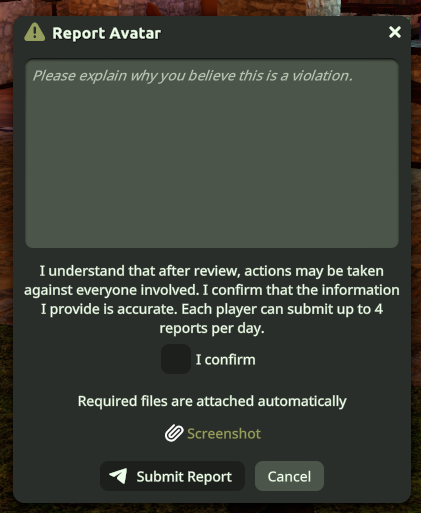
3DX Chat has a built-in reporting system. If someone is harassing you, simply keep the chat open where the offensive dialogue is found for the offending party, right click on their name and in the menu select “Report Avatar.” A window will pop-up for you to fill out more info and the game automatically takes a screenshot of the offensive chat/activity.
Once all info has been filled out regarding the offense, hit “submit report” and it will be sent to 3DX moderators for review.
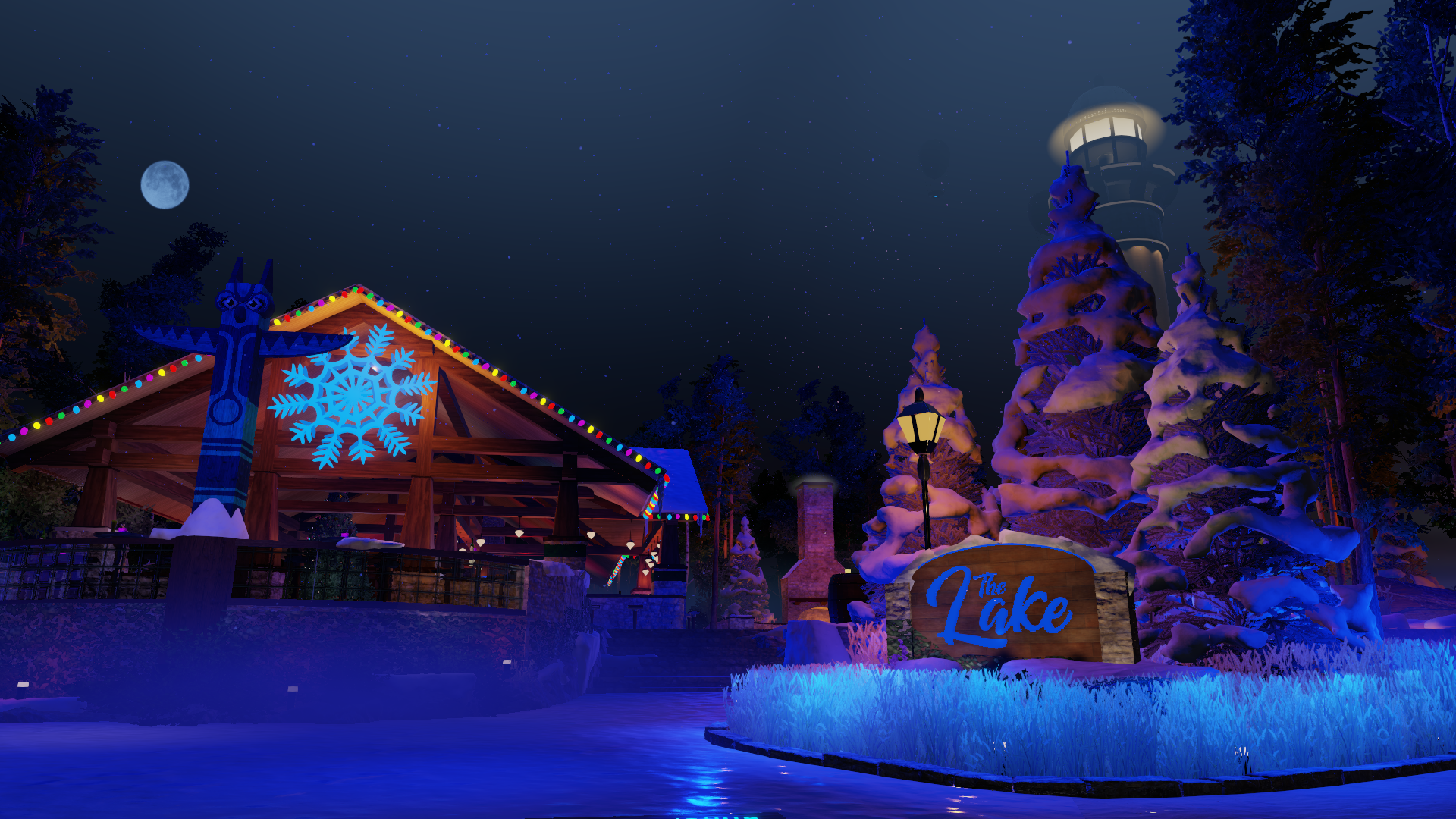
The Lake
Are there moderators at the Lake?
Yes. There are 3 main moderators at the Lake with others who are able to contact a moderator if there is an issue.
- GaryS
- Keely
- Fable
Any one of these players can help you with an issue at the Lake.
Can I suggest a song for the Lake?
Absolutely! You submit a song you would like to hear added to the Lake to Fable/Keely, or you can send it to fable@fablesforge.com. Please put “Music Request for the Lake” in the subject title.
Can I build something and have it added to the Lake?
Yes and No. To submit something to the Lake it must meet a few criteria.
- The size of the asset submitting can not be larger than 500 kb unless prior arrangements have been made with the room owner. An asset that is 501kb will be rejected.
- The asset must fit the Lake’s aesthetics.
- All submissions must be approved
If an asset from a builder is placed at the Lake, it does not imply that it will be a permanent addition to the Lake. It will remain for at least the duration of time until the next update is made.